

M4A is a common audio format used for music, voice recordings, and other audio files. However, M4A files may not work with every device or application. If you have trouble playing an M4A file on an older media player, importing it into an audio editor, or sharing it with someone whose device doesn't support the format, converting it to MP3 can be a practical solution.
To help you find the M4A to MP3 converters, we've reviewed and tested 6 popular M4A to MP3 converters for Windows, Mac, and web browsers. We evaluated each option based on its intended use, platform compatibility, key features, and pricing or free-use limits. This guide will help you compare the available options and choose the one that best fits your needs.
- Quick Verdict: Which M4A to MP3 Converter Should You Choose
- How We Tested the M4A to MP3 Converters
- Best Free Online M4A to MP3 Converters
- Best Free Desktop M4A to MP3 Converters
- Best Apple Music M4A to MP3 Converter
- How to Choose the Right M4A to MP3 Converter
- FAQs about M4A to MP3 converter
- Conclusion
Quick Verdict: Which M4A to MP3 Converter Should You Choose?
| Converter | Best for | Platform | Output Quality | Free-use model | Main consideration |
| CloudConvert | Flexible online conversion | Web browser | Up to 320kbps, 96kHz | 10 conversion credits per day and up to five concurrent tasks | Free conversions are credit-based; usage may be limited for larger files or frequent conversions. |
| FreeConvert | Online conversion and batch workflows | Web browser | Up to 320kbps, 48kHz | 20 conversion minutes per day, with a maximum of 5 conversion minutes per file | Daily conversion time is limited, with a per-file time cap on the free plan. |
| Audacity | Fully editing audio files before conversion | Windows, macOS, Linux | Up to 320kbps, 48kHz | Free desktop software | M4A support requires FFmpeg. |
| VLC Media Player | Existing VLC users and occasional conversion | Windows, macOS, Linux, Android, iOS and other supported platforms | Up to 320kbps, 48kHz | Free desktop software | Conversion settings are less intuitive |
| iTunes / Apple Music App | Converting compatible local M4A files without installing a third-party converter | Windows (iTunes, where supported) and macOS (Apple Music app) | Up to 192kbps, 44.1kHz | Free built-in feature | Requires changing import settings before conversion. |
| TuneFab Apple Music Converter | Apple Music-focused conversion and local file conversion with batch support | Windows, macOS | Up to 320kbps, 48kHz | 3 full songs conversion | Apple Music conversion requires a paid license after the trial |
No single converter is ideal for every situation. Before choosing one, consider whether your files are stored locally, whether you need batch conversion, how much control you want over the output, and whether the free version meets your requirements.
How We Tested the M4A to MP3 Converters
We evaluated each converter based on conversion speed, ease of use, output options, and free-use limits. We also considered platform compatibility, available features, and any limitations that could affect the overall conversion experience. These criteria helped us compare each tool's strengths and weaknesses and determine which options offer the best fit for different needs.
Test Environment
| Test item | Details |
| Test date | October 24, 2026 |
| Devices | Windows 10 laptop, Intel i7, 16 GB RAM |
| MacBook Air (Apple M4), 8GB RAM, macOS Tahoe 26.0.1 | |
| Browser | Chrome |
| Tested items | Local M4A audio 1#- 2:16 |
| Local M4A audio 2#- 4:56 | |
| Local M4A audio 3#- 5:04 | |
| Network | Wi-Fi connection |
| Test run | To reduce one-off anomalies, tests were repeated 2 times |
| Output settings | MP3 320kbps |
Testing Criteria
- Conversion Success: Whether compatible M4A files could be converted to MP3 successfully.
- Conversion and Download Speed: Time required for conversion, distinguishing processing time from upload and download time where applicable.
- Output Quality: Available bitrate settings and the quality of exported MP3 files.
- Batch Processing: Whether multiple files can be converted in one session.
- Ease of Use: Clarity of the interface and conversion settings.
- Free-use Limitations: Restrictions on file size, conversion time, daily usage, or trial access.
Note: The three locally stored M4A test files were general audio files rather than music tracks and contained no substantial metadata for comparison. Therefore, we did not assess metadata preservation.
Best Free Online M4A to MP3 Converters
If you only have a few standard, unprotected M4A files, using an online M4A to MP3 converter is often the quickest solution. There is no software to install, and most tools work directly from your browser on Windows, Mac, and even mobile devices.
#1 CloudConvert
💻 System Requirements: Web-based
⚖️ Best for: Flexible online conversion from cloud or local storage.
Overview
CloudConvert is a browser-based file conversion service that supports M4A-to-MP3 conversion. According to its official product information, it supports over 200 audio and video formats and offers configurable conversion options. Files can be uploaded from a local device or imported from a URL, Google Drive, Dropbox, or OneDrive.
Hand-on Test Result
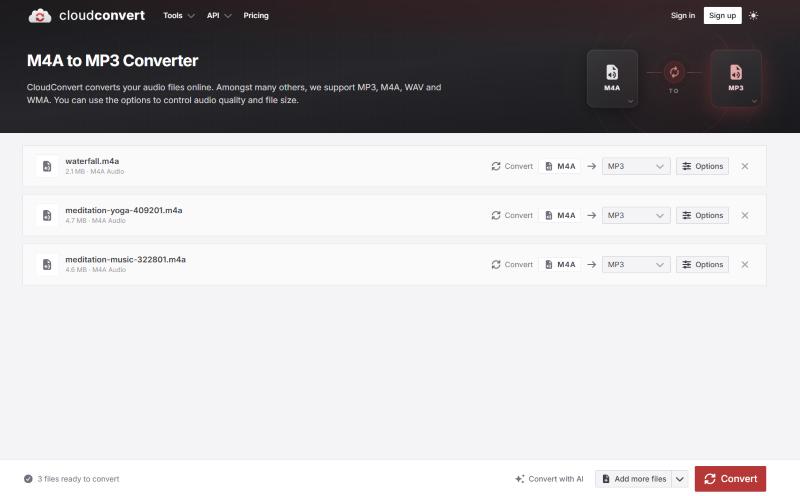
CloudConvert's browser-based interface was intuitive, allowing us to start conversions immediately without a learning curve. We tested the free plan, which includes 10 conversion credits per day and supports up to five concurrent tasks. After uploading our local M4A files, we could customize various output settings, including bitrate, codec, audio quality, sample rate, channels, and volume. A built-in audio trimming option was also available.
Overall, CloudConvert performed well when converting DRM-free M4A files. The conversion process took around 4 seconds before the output files were ready to download, and we could run all three tasks simultaneously. However, downloading the converted files was considerably slower. Under the same network conditions, downloading a 2:16 audio file took over one minute, although our internet connection may have contributed to the delay. When the connection became unstable, some downloads were interrupted and had to be retried. We also verified the properties of all three downloaded MP3 files and found that each had a bitrate of 320 kbps, matching the preset value.
Pros and Cons
Pros
- No desktop installation is required.
- Supports local files and cloud storage
- Handles 200+ audio and video formats
- Offers adjustable conversion settings, batch conversion and trimming.
Cons
- Free usage is limited.
- Conversion may be affected by file size and network conditions.
Pricing and Free Limits (Checked in Octorber)
The tool offers four plans: Free, Package, Subscription, and Enterprise.
| Plan | Price | Credits | Key limits |
| Free | $0 | 10/day | 1 GB max file size; 5-minute processing limit |
| Package | $17 one-time | 1,000 | Credits never expire |
| Subscription | $9/month | 1,000/month | Credits reset monthly |
| Enterprise | Custom | Custom | Designed for large-scale workloads |
The free plan includes all API features and bandwidth, but has low processing priority and a limit of five concurrent tasks. Paid plans offer high processing priority, unlimited file size and processing time, and unlimited concurrent tasks.
Our Verdict
CloudConvert is a straightforward online converter with flexible output settings and support for multiple simultaneous conversions. However, slow downloads and occasional interruptions may be frustrating, especially when handling larger files.
#2 FreeConvert
💻 System Requirements: Web-based
⚖️ Best for: Online conversion with adjustable audio settings and batch workflows.
Overview
FreeConvert is a popular web-based tool for quick M4A-to-MP3 conversion. It allows users to convert M4A files uploaded from local storage, Google Drive, Dropbox, or via URL. It also offers additional audio editing options, including volume adjustment, fade-in and fade-out effects, and audio reversal.
Hand-on Test Result
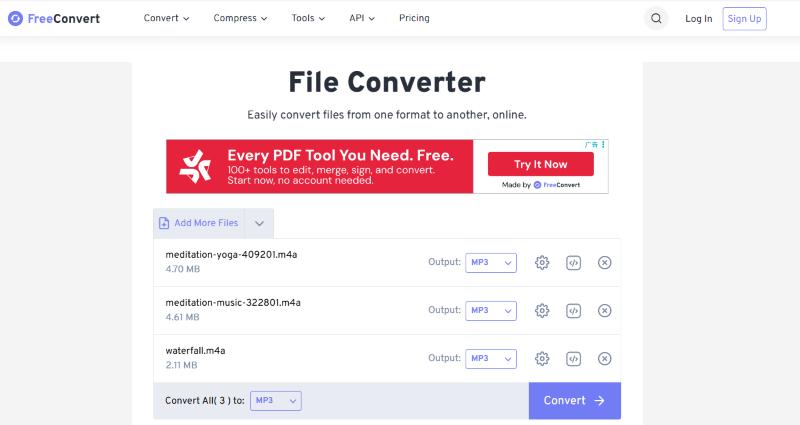
In our tests, FreeConvert was just as easy to use as CloudConvert, but delivered noticeably faster overall conversion and download times. All three test tracks finished processing in under 20 seconds, and the resulting files were packaged into a ZIP archive that downloaded to our computer in under 10 seconds.
Before conversion, FreeConvert allowed us to adjust several output settings, including codec, bitrate, sample rate, audio channels, and volume. After downloading the files, we checked their properties and confirmed that all three exported MP3 files had the preset bitrate of 320 kbps. One notable downside was the display ads on the main page. Although we did not encounter any redirects to other pages or interruptions during the download process, the ads cluttered the interface and detracted from the overall user experience.
Pros and Cons
Pros
- No desktop installation is required.
- Supports customizable output settings, including audio fading and trimming.
- Free plan supports files up to 1 GB (requires login).
Cons
- Free usage is limited by conversion time and file-size restrictions.
- Includes ads on the page.
- Large or lengthy conversions may require a paid plan.
Pricing and Free Limits (Checked in Octorber)
The tool offers three monthly subscription plans and an on-demand option. All plans include unlimited daily operations, with conversion minutes and maximum file sizes varying by tier.
| Plan | Price | Conversion Minutes | Max File Size |
| Free | Free | 20 conversion minutes per day, with a maximum of 5 conversion minutes per file. | 1GB |
| Basic | $12.99/month | 1,500/month | 1.5 GB |
| Standard | $24.99/month | 2,000/month | 2 GB |
| Pro | $29.99/month | 4,000/month | 5 GB |
| Scale | On-demand | Up to 1 million/month | Up to 20 GB |
Our Verdict
FreeConvert offers convenient M4A-to-MP3 conversion, basic audio editing tools, and ZIP downloads for multiple files. However, its limited free conversion allowance and ad-heavy interface may frustrate frequent users.
Best Free Desktop M4A to MP3 Converters
Unlike web-based tools, desktop M4A to MP3 converters for Windows and Mac usually offer a more stable performance. Here are 3 reliable desktop converters worth considering.
#3 Audacity
💻 System Requirements: Windows, macOS, Linux
⚙️ Software Version: 4.0.1
⚖️ Best for: Users who need to edit, trim, or process audio before converting it to MP3.
Overview
Audacity is a free, open-source audio editor that also works as a free M4A to MP3 converter. Beyond a simple format converter, it lets you work with the audio itself before exporting the result. You can trim recordings, remove unwanted sections, adjust levels, apply effects, and then export the finished audio as MP3.
Hand-on Test Result
Compared with the straightforward, ready-to-use experience of the two online tools reviewed earlier, Audacity takes a little more time for first-time users to set up and get familiar with its interface. To import and export M4A files, Audacity requires the FFmpeg library, which can be installed by following the instructions and download links in the official Audacity manual.
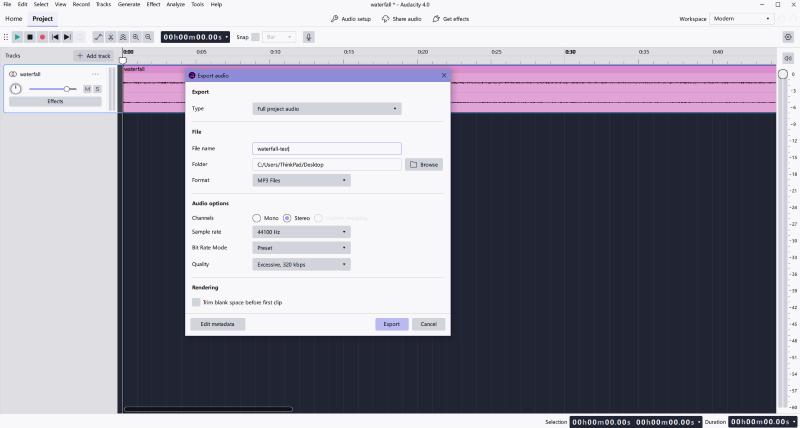
Once set up, Audacity works well with drag-and-drop. For our tests, we exported the audio files without making any additional adjustments. The export dialog lets users configure the file name, save location, audio format, sample rate, channel settings, bitrate, and ID3 tags.
One major advantage of Audacity is that local conversion does not depend on internet speed for processing or downloading files. All three test files were exported individually in under 10 seconds. Audacity also delivered consistent results, with all three MP3 files exported at our selected bitrate of 320 kbps.
Pros and Cons
Pros
- Free and open-source.
- Provides extensive audio-editing tools.
- Allows control over MP3 export settings.
- Suitable for users who want to modify recordings before conversion.
Cons
- More complex than a basic converter.
- Requires FFmpeg to handle M4A to MP3 conversion.
- Less convenient if you only need to change the format of a single file.
Pricing and Free Limits
Audacity is free to download and use. There is no standard paid subscription required for its core audio-editing and export features.
Our Verdict
Audacity is a strong choice when you need more than format conversion. It is especially useful for voice recordings, interviews, podcasts, and other audio that needs editing before export. If your only goal is to convert an unmodified M4A file, a simpler tool may involve fewer steps.
#4 VLC Media Player
💻 System Requirements: Windows, macOS, Linux, Android, iOS and other supported platforms
⚙️ Software Version: 3.0.24
⚖️ Best for: Users who already have VLC installed and want basic M4A to MP3 conversion
Overview
VLC Media Player is a free, open-source multimedia player known for its broad format support. Beyond media playback, it also offers built-in conversion tools. It's particularly convenient if VLC is already installed on your computer.
Hand-on Test Result
VLC's conversion feature is not immediately obvious, and it took us a few minutes to locate the relevant settings on our first try. However, the conversion process itself is straightforward: simply select the source file and output format. Unlike dedicated audio converters, VLC offers relatively few output settings by default.
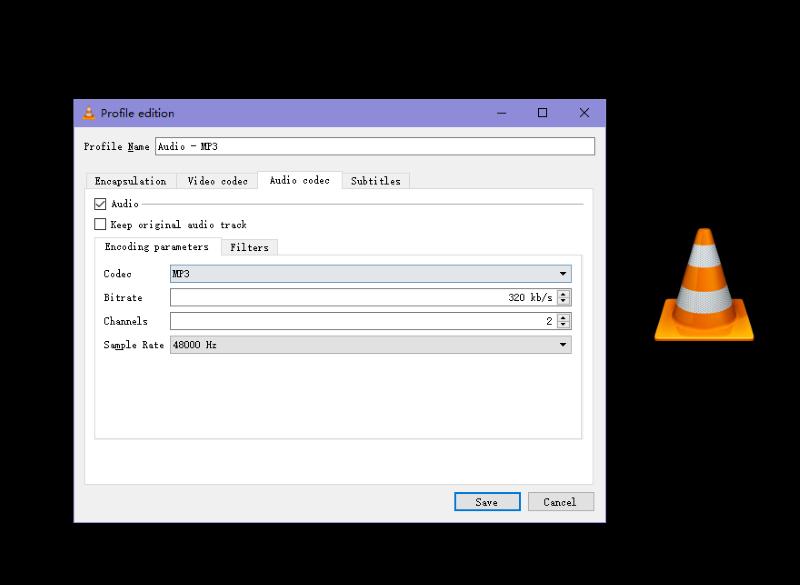
MP3 exports default to 128 kbps, so to achieve our target bitrate of 320 kbps, we had to open the wrench icon next to the selected profile and manually adjust the audio codec settings. Once configured, VLC converted the files quickly and reliably, with no ads or crashes during testing. Each of the three test files took approximately 10–15 seconds to convert.
Pros and Cons
Pros
- Free to use.
- Supports a wide range of media formats.
- Useful for users who already have VLC installed.
- Adjustable bitrate and sample rate
Cons
- The conversion feature is hidden for beginners
- Limited batch processing
- Default output quality is low (128 kbps)
Pricing and Free Limits
VLC Media Player is free and open-source. There is no paid conversion subscription or standard conversion quota for its core desktop functionality.
Our Verdict
VLC is a reasonable choice for occasional M4A-to-MP3 conversion if you already use it as your media player. It is less suitable if you want a dedicated interface for managing large audio libraries or editing audio before export.
#5 iTunes / Apple Music App
💻 System Requirements: Windows (iTunes, where supported) and macOS (Apple Music app)
⚖️ Best for: Free conversion of DRM-free M4A files and iTunes purchases to MP3 using built-in software on Windows or Mac.
Overview
Developed by Apple, iTunes includes a built-in encoder that allows users to convert M4A files to MP3 without installing additional software. On macOS Catalina and later, this feature is integrated into the Apple Music app. While it's not a dedicated M4A to MP3 converter for Windows 10/11/macOS, it remains one of the most accessible free desktop tools for basic audio transcoding.
Hand-on Test Result
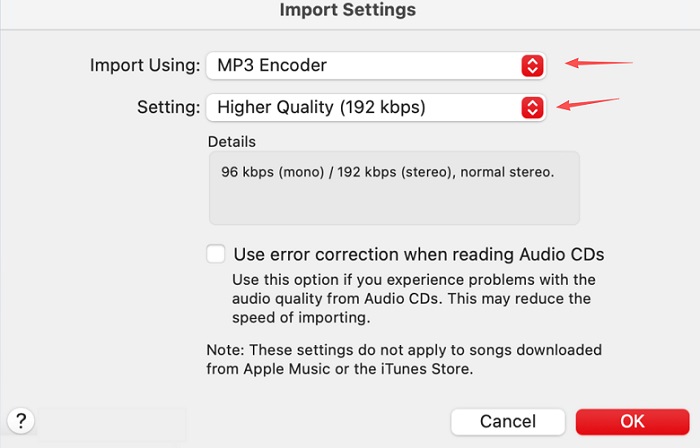
We tested both the Apple Music app on macOS and iTunes for Windows using the same set of local M4A files. Both tools support M4A-to-MP3 conversion without requiring additional software, although the setup process differs slightly by platform. On macOS, we opened Music → Settings → Files → Import Settings and selected MP3 Encoder. On Windows, we went to Edit → Preferences → Import Settings in iTunes and selected the same option. We then selected each test file and used the Create MP3 Version option to convert it.
Both tools are free to use, but their default MP3 bitrate is 160 kbps. To adjust MP3 encoding settings, choose MP3 Encoder and open Custom in Import Settings; compare the options available in your installed version before converting. Once the settings are configured, the conversion process is straightforward. Also, it is worth mentioning that this method works with local M4A files and eligible iTunes purchases. If you want to process protected Apple Music downloads, iTunes is not ideal.
Pros and Cons
Pros
- Free to use as part of the built-in app.
- Convenient for occasional local-file conversion.
- Fits naturally into an existing Music library.
- Safe and officially supported
Cons
- Requires changing the import settings before converting files.
- The conversion workflow is less intuitive.
- Limited MP3 quality settings and batch efficiency.
- Less suitable for users who need advanced audio editing.
Pricing and Free Limits
The built-in conversion feature does not require a separate purchase of a converter.
Our Verdict
iTunes on Windows and the Music app on macOS are free options for converting compatible local M4A files. Choose the MP3 encoder and review its custom settings before exporting. If you need to edit the audio before conversion, consider an audio editor such as Audacity.
Best Apple Music M4A to MP3 Converter
The M4A to MP3 converters reviewed above work with standard, accessible audio files. But what if a file has an M4A extension and still cannot be opened or converted? If the file isn't corrupted or using an unsupported codec, one possible reason is that it comes from Apple Music. Such content may be protected by DRM or stored as app-managed offline downloads, which ordinary M4A-to-MP3 converters may not be able to import, recognize, or convert. If you've encountered this type of file, the tool discussed in this section may help.
#6 TuneFab Apple Music Converter
💻 System Requirements: Windows, macOS
⚙️ Software Version: 4.0.14
⚖️ Best for: Users who want local M4A conversion and a separate Apple Music web-player workflow in one desktop app.
Overview
TuneFab Apple Music Converter is a desktop tool that combines a standard audio format converter with a built-in Apple Music web player. Its standalone Format Converter handles local M4A files and converts them to MP3, while the built-in player lets users access the Apple Music catalog and add songs, albums, and playlists to the conversion queue.
Apple Music subscription downloads are designed for playback within Apple's supported apps and devices, rather than as ordinary, freely accessible audio files. TuneFab offers an alternative workflow for converting Apple Music tracks into more widely supported formats, such as MP3, for playback on compatible media players and devices.
Hand-on Test Result
We tested both the local audio conversion feature and the built-in Apple Music player to evaluate their performance, ease of use, and output quality.
Converting Local M4A Files
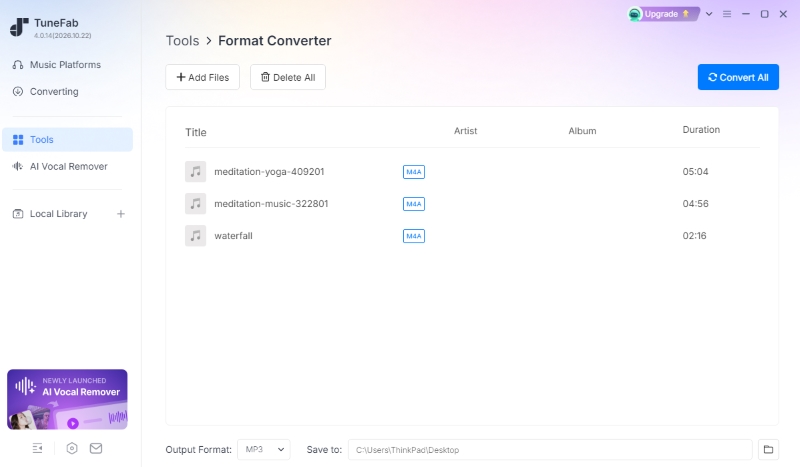
The built-in Format Converter is easy to find in the desktop application's menu and works much like a traditional audio converter. We dragged and dropped three test M4A files into the interface and converted them with a simple click. The conversion process ran smoothly, with each track taking approximately 5–8 seconds to convert. We encountered no file-size restrictions during our tests, intrusive ads, or application crashes.
Converting Apple Music Tracks
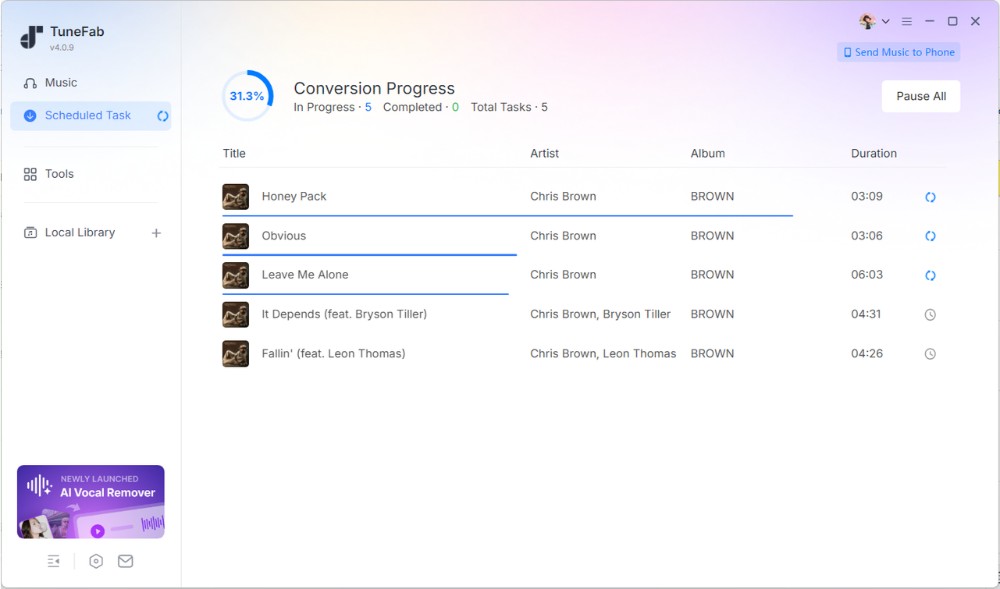
To test the Apple Music conversion feature, we logged in through the built-in web player and searched for individual songs, an album, and a playlist. After adding the selections to the conversion queue, the tool parsed and queued nearly all tracks within approximately three seconds per track. We then selected MP3 as the output format, set the desired audio quality, and started the batch conversion. In our tests, a 4-minute track took approximately 10 seconds to convert. The application remained responsive throughout the process, with no crashes or freezing.
Output Quality and Metadata
We checked the converted files from both workflows locally. The output format and bitrate matched our selected settings: MP3 at 320 kbps. For the Apple Music tracks we converted, ID3 metadata, including album artwork, artist names, and track numbers, was accurately preserved across individual songs, albums, and playlists. But this did not apply to our local M4A conversion tests, where the source files had no ID3 metadata to retain.
.
Pros and Cons
Pros
- Handles both protected and unprotected M4A files in one app.
- Converted the three local M4A files in our test without an application crash.
- Offers customizable output settings
- Retains full ID3 tags for converted Apple Music tracks.
Cons
- Requires installation.
- The free trial only lets you convert 3 full songs.
- Subscription required for unlimited conversion.
Pricing and Free Limits (Checked in Octorber)
TuneFab Apple Music Converter offers a free trial and several paid plans. For free trial, you can convert 3 full songs to test the conversion workflow before paying. Here's a quick overview for the three paid plans:
| Plan | Price | License | Feature Access | Money-Back Guarantee |
| 1-Monthly Subscription | $25.95 | 1 computer | 1-month access to full features | 7 days |
| 1-Year Subscription | $79.95 | 1 computer | 1-year access to full features | 7 days |
| Perpetual License | $99.95 | 1 computer | Lifetime access to full features | 30 days |
Our Verdict
If you need more than a basic M4A-to-MP3 converter, TuneFab Apple Music Converter is worth considering. It combines fast batch conversion for local M4A files with a built-in Apple Music web player for converting songs, albums, and playlists. If you need to convert Apple Music to MP3 or batch process large local M4A libraries quickly, TuneFab is one of the best options available for Windows and Mac.
Related Reading:
How to Choose the Right M4A to MP3 Converter
Now that you have compared the six tools, use the following criteria to narrow down your options.
- Consider Where Your Files Come From
For regular local M4A files, most tools in this guide offer a suitable workflow. If the files come from an Apple Music subscription, first confirm what kind of content you are dealing with and whether the tool supports that specific workflow.
- Check the Free Limits Before Starting
A converter advertised as free may still impose limits on file size, conversion minutes, batch processing, or trial usage. If you only convert a few short recordings, a free option may be enough. For frequent conversions, compare the total cost against the features you actually need.
- Decide Whether You Need Audio Editing
If you want to trim a recording, reduce noise, or adjust its volume before conversion, Audacity offers more control than a basic format converter. If you only need to change the format, a simpler tool may save time.
- Consider Privacy and Convenience
Online converters require uploading files to a service. For recordings containing personal or confidential information, consider an offline desktop workflow and review the software's privacy practices.
- Choose the Output Settings Carefully
MP3 bitrate affects file size and can affect perceived audio quality. For general music listening, 192–256 kbps is a reasonable starting range. For speech, a lower bitrate may be sufficient. The best setting depends on the source and intended use.
FAQs about M4A to MP3 converter
Q1. Does converting M4A to MP3 reduce audio quality?
It can. The extent of quality loss depends on the source file and the MP3 encoding settings. M4A files can contain either lossy AAC or lossless ALAC audio, while MP3 uses lossy compression. Converting to MP3 may therefore reduce audio quality, especially if the source is already compressed. A higher bitrate, such as 320 kbps, can help preserve more audio detail during encoding, but it cannot restore information lost in the original file. For everyday listening, the difference may be difficult to notice, but keeping the original file is best if audio quality is a priority.
Q2. Does converting M4A to MP3 make the file smaller?
Not always. The resulting file size depends on the source file's encoding, bitrate, and duration. If you convert M4A to MP3 at a lower bitrate, the file may become smaller, but audio quality may also decrease. For the best balance between file size and sound quality, choose an MP3 bitrate that suits your needs rather than assuming MP3 will always produce a smaller file.
Q3. Can I convert Apple Music songs to MP3 with a free online converter?
Yes. TuneFab offers an online Apple Music to MP3 converter that lets you download songs, albums, and playlists as MP3 files without installing desktop software. It supports batch downloads for albums and playlists, with output quality options of 128 kbps and 320 kbps. However, free use is limited, and additional downloads may require a paid plan. For large playlists or more output options, TuneFab's desktop converter may be a better fit.
Q4. Is an online M4A to MP3 converter safe?
It depends on the service you use. Before uploading audio files, check the provider's privacy policy and how long it retains uploaded files. Avoid uploading confidential or sensitive recordings to unfamiliar websites. If privacy is a concern, use an offline converter to process files locally without sending them to a third-party server.
Conclusion
The right M4A to MP3 converter depends on how often you convert audio, where your files come from, and which features you need. CloudConvert and FreeConvert are convenient for quick online conversions, while Audacity, VLC, and iTunes / Apple Music offer free desktop options. If you already have one of these apps installed, you can use it without downloading another converter.
If you also want to convert Apple Music tracks, TuneFab Apple Music Converter is worth considering. It combines a local audio format converter with a built-in Apple Music web player, allowing you to handle both types of conversion in one desktop application. While free tools may be sufficient for occasional conversions, TuneFab is a useful option for users who regularly convert Apple Music songs, albums, or playlists.