

Ownership disclosure:
TuneFab Ratings is operated by TuneFab. This guide includes TuneFab products alongside third-party tools where relevant. Product information is based on publicly available documentation and stated capabilities, with vendor claims distinguished from independently verified information where applicable. Please consider each tool's limitations and suitability for specific use cases.
AAC (Advanced Audio Coding) and MP3 are both lossy audio formats, but not every device or application supports both. Converting AAC to MP3 can help when MP3 compatibility is required, although re-encoding may introduce additional quality loss.
Before choosing an AAC to MP3 converter, identify the file's format, source, and protection status. A file extension alone does not establish whether the audio is DRM-protected or compatible with a particular converter.
- Accessible, DRM-free local audio: Standard AAC or compatible audio files stored on your device can often be processed by built-in utilities, desktop software, or online converters, depending on the tool's supported formats.
- Apple Music subscription downloads: These should not be treated as ordinary local AAC files. Their access and playback restrictions differ from those of standard audio files, and generic file converters generally cannot process them like unprotected local audio.
If your playback device supports AAC, keeping the original file may be the simplest option. Conversion should be considered when MP3 compatibility is actually needed. Below, we compare 6 AAC to MP3 converters, including their compatibility, features, limitations, and potential use cases.
Note on Our Evaluation Scope: Since encrypted streaming tracks cannot be processed or tested using standard file-processing utilities or generic online converters, this guide evaluates each solution based on official vendor specifications, platform compatibility, and functional boundaries.
- How to Choose an AAC to MP3 Converter
- Comparison of the 6 AAC to MP3 Converters
- Learn About AAC to MP3 Converters by Use Case
- Apple's Built-In Tools: iTunes and the Music App
- Free Desktop Option: VLC Media Player
- Browser-Based Option: Convertio
- Browser-Based Option for Android/Desktop: FreeConvert
- iOS App Option: AAC Converter, AAC to MP3
- Desktop Option for Protected AAC Files: TuneFab 🔥
- Final Verdict: Which AAC to MP3 Converter to Choose?
- FAQs About AAC to MP3 Conversion
How to Choose an AAC to MP3 Converter
For ordinary, unencrypted AAC files, most online converters and mobile apps can complete the task. However, if your files are encrypted or protected, such as downloaded Apple Music subscription tracks, you will need a dedicated solution with protected content processing capabilities.
Thus, when choosing AAC to MP3 converters, consider these key factors:
- Audio Input Classification: DRM-free vs. protected files
- Platform Compatibility: Windows, macOS, web-based, Android, or iOS
- Output Settings: Available MP3 bitrate and encoding options
- Batch Processing: Whether multiple files can be converted in one workflow
- Data Handling & Free Limits: Upload requirements, file-size restrictions, account requirements, and free-tier limits
Comparison of the 6 AAC to MP3 Converters
Based on these criteria, we've selected 6 AAC to MP3 converters for different use cases, including local desktop conversion, browser-based conversion, and mobile apps. Their suitability depends on file compatibility, available features, and usage limits.
| Tool | Use Case | Platform | Free Limit | Protected Apple Music Downloads | Max MP3 Bitrate | Data Handling |
| TuneFab Apple Music Converter | Protected Apple Music & large local libraries | Windows / macOS | 3 full tracks | ✅ Yes | Up to 320kbps | ✅ Local processing (no uploads) |
| Apple Music or iTunes | DRM-free local AAC files | Windows / macOS | Free | ❌ No | Up to 256kbps | ✅ Local processing |
| VLC Media Player | Basic offline DRM-free conversion | Windows, macOS, Linux | Free | ❌ No | Up to 320kbps | ✅ Local processing |
| Convertio | Quick online DRM-free conversions | Web-based | Free with size limits | ❌ No | Up to 320kbps | ⚠️ Cloud upload required |
| FreeConvert | Browser & Android DRM-free conversion | Web-based | Free with size limits | ❌ No | Up to 320kbps | ⚠️ Cloud upload required |
| AAC Converter, AAC to MP3 | Offline iPhone/iPad DRM-free conversion | iOS | Free | ❌ No | Up to 320kbps | ✅ Fully local processing |
Learn About AAC to MP3 Converters by Use Case
The right AAC to MP3 converter depends on your device, file compatibility, and preferred workflow. The following options cover built-in desktop tools, browser-based services, and mobile apps for compatible, unprotected audio, along with a separate overview of TuneFab's stated capabilities and limitations.
Apple's Built-In Tools: iTunes and the Music App
- Supported OS: Windows (iTunes, depending on version), macOS (Music app)
- Input Limit: DRM-free AAC only (Cannot process protected files)
- Input Compatibility: Compatible local audio files, subject to format and DRM restrictions
- MP3 Output Settings: Available options depend on the app version and selected encoding settings
- Batch Conversion: Conversion workflow may require manual selection
- Use Case: Users who want to convert compatible, unprotected local AAC files without installing a third-party converter
- Not Ideal For: Users who need extensive batch-processing features or want to convert Apple Music subscription downloads as ordinary local audio files
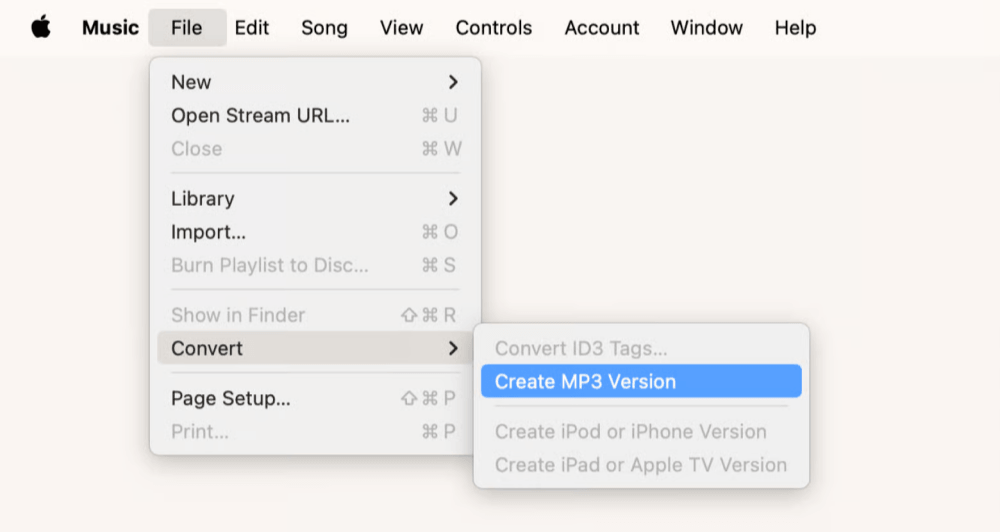
On supported versions of Windows and macOS, iTunes or the Music app can create MP3 copies of compatible, unprotected local audio files through their available import and conversion settings. On Windows, users can use iTunes where the conversion feature is available. On macOS, the Music app provides corresponding options. By selecting the MP3 encoder in the relevant import settings, users can create MP3 copies of supported, unprotected local audio.
These tools are a practical starting point for occasional conversions, and the original file can be retained alongside the converted copy. However, available settings and workflows vary by app version, and protected Apple Music subscription downloads should not be treated as ordinary local AAC files that can be converted through standard file-conversion features.
Pros
- Free official solution from Apple
- Converts DRM-free AAC files within the iTunes or Apple Music app
- Offers configurable encoding settings, depending on the app version
Cons
- Cannot convert DRM-protected Apple Music tracks
- Batch-conversion workflows may require more manual steps than a dedicated audio converter
Free Desktop Option: VLC Media Player
- Supported OS: Windows, macOS, Linux
- Input Compatibility: Supported, unprotected local AAC files; compatibility may vary by file and VLC version
- MP3 Output Settings: Configurable options depend on the installed version and conversion profile
- Cost and License: Free and open-source
- Use Case: Users who want a desktop tool for occasional offline conversion
- Not Ideal For: Users who need a dedicated music-library conversion workflow or want to process protected Apple Music subscription downloads
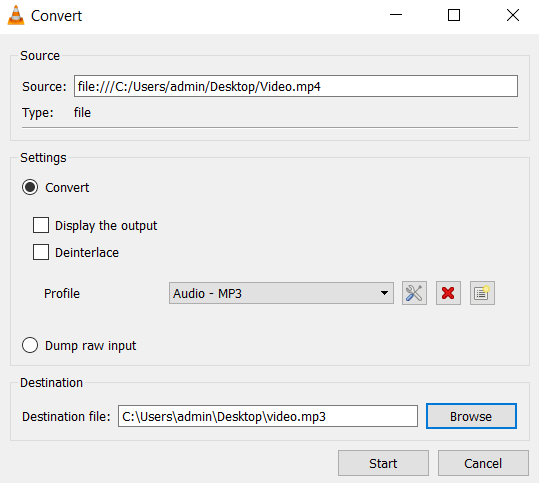
VLC Media Player is a free, open-source multimedia player with a built-in file conversion feature. For compatible, unprotected local AAC files, users can open the "Convert/Save" utility, select MP3 as the output format, and save a converted copy. The process can be performed offline, making VLC an option for users who prefer desktop conversion without uploading audio to an online service.
VLC is primarily a media player rather than a dedicated audio-library converter. Its available output settings and conversion workflow depend on the installed version and selected profile, while users with large collections may also need to consider batch-processing and metadata requirements.
Pros
- Free and open-source
- Supports offline conversion of compatible local audio
- Available across Windows, macOS, and Linux
Cons
- Supports DRM-free AAC files only
- Available output settings depend on the selected profile and installed version
Browser-Based Option: Convertio
- Supported Platform: Web browser
- Input Compatibility: Compatible, unprotected AAC files
- MP3 Output Settings: Available options depend on the service's current conversion settings
- Data Handling: Requires uploading files to an online service; review the provider's current privacy and retention terms before uploading sensitive audio
- Use Case: Users who want to convert a compatible audio file without installing desktop software
- Not Ideal For: Users who cannot upload their audio, need offline conversion, or want to convert protected Apple Music subscription downloads
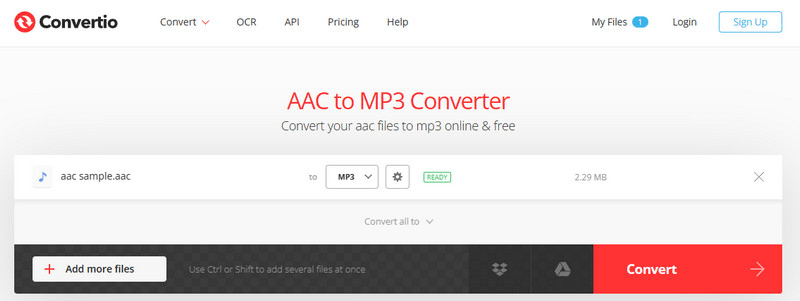
Convertio offers a browser-based workflow for converting compatible AAC files to MP3 without installing desktop software. Users upload a supported file, choose MP3 as the output format, and start the conversion. This approach can suit occasional conversions across devices with a supported browser and an internet connection.
The service's available output settings and free-tier limits may vary, so users should check the options and restrictions that apply before converting larger files. Because audio must be uploaded to an online service, consider the file's sensitivity and review Convertio's current data-handling policy before proceeding.
Pros
- Browser-based conversion without installing desktop software
- Accessible through supported web browsers without installing desktop software
- Available output options may include bitrate and sample-rate settings, depending on the service's current configuration
Cons
- The free version has file size limits and may require an account for larger files
- Performance depends on internet speed and connection stability
- Requires uploading audio to an online service; review the provider's current retention policy before uploading sensitive files
Browser-Based Option for Android/Desktop: FreeConvert
- Supported Platform: Web browser, including browsers on Android and iOS
- Input Compatibility: Compatible, unprotected AAC files
- MP3 Output Settings: Available options depend on the service's current conversion settings
- Data Handling: Requires uploading files to an online service; review the provider's current privacy and retention terms before uploading sensitive audio
- Use Case: Users who want to convert compatible audio through a mobile or desktop browser
- Not Ideal For: Users who need offline conversion, cannot upload their audio, or want to convert protected Apple Music subscription downloads
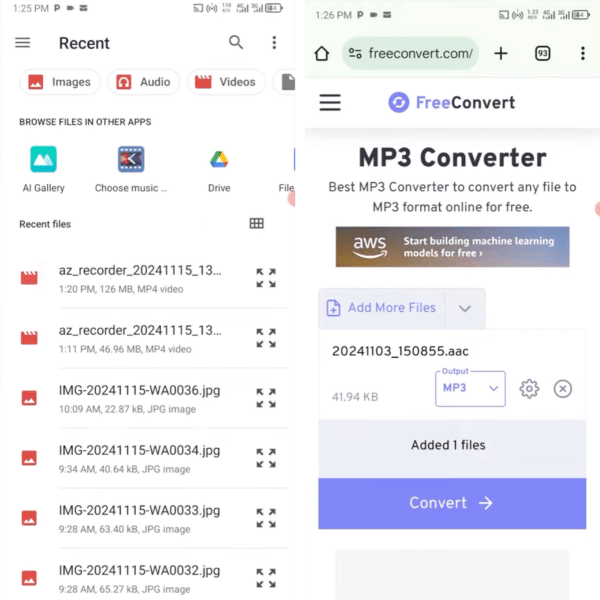
FreeConvert provides a browser-based way to convert compatible AAC files to MP3 without installing a dedicated application. Users can access the service through a mobile browser on Android or through a supported desktop or iOS browser, then upload a file and select the desired output format. The available conversion options depend on the file and the service's current settings.
FreeConvert can be an option for occasional conversions when an internet connection and file upload are acceptable. Before processing larger files or multiple items, check the current free-tier limits and available output settings. Users handling private recordings should also review the provider's data-handling policy, and should not treat the service as a solution for converting protected Apple Music subscription downloads.
Pros
- Accessible through a browser on supported Android and other devices
- No installation required, and it supports customizable MP3 output settings
- Offers a free tier for converting compatible AAC files to MP3, subject to current usage limits
Cons
- Requires an internet connection and file upload
- Free-tier limits and available output settings may vary
- Not suitable for files you cannot upload or protected Apple Music subscription downloads
iOS App Option: AAC Converter, AAC to MP3
- Supported OS: iOS 14.0 or later (iPhone & iPad)
- Input Compatibility: Supported, unprotected AAC and other formats listed by the app
- MP3 Output Settings: Depends on the options available in the current app version
- Data Handling: Confirm the app's current processing method and privacy disclosures before handling sensitive audio
- Use Case: iOS users who prefer a dedicated app for converting compatible audio on their device
- Not Ideal For: Users on non-iOS platforms or those seeking to convert protected Apple Music subscription downloads
AAC Converter, AAC to MP3 is an iOS app designed to convert supported audio formats on iPhone or iPad. Users can work through a dedicated mobile interface rather than a desktop program or browser-based service. The available input formats, output settings, and file-saving options depend on the app's current version.
For users who regularly convert compatible audio on an Apple mobile device, a dedicated app may offer a convenient alternative to online conversion. Before using it for sensitive recordings, confirm its current processing method and privacy disclosures rather than assuming that all conversion takes place locally.
Pros
- Converts AAC to MP3 entirely offline on iPhone and iPad
- Supports multiple audio formats and adjustable output settings
Cons
- Available only on iOS devices
- Not suitable for files you cannot upload or protected Apple Music subscription downloads
- Supported formats and output options depend on the current app version
Desktop Option for Protected AAC Files: TuneFab Apple Music Converter
- Supported OS: Windows 11/10/8/7, macOS 10.15 or later
- Input Formats: AAC (protected & unprotected), M4P
- Max MP3 Bitrate: Up to 320kbps (lossless output supported for FLAC, WAV)
- Performance Specs (Vendor-claimed): Up to 35X conversion speed, hardware acceleration supported
- Batch & Metadata: Unlimited batch processing with full ID3 tag retention
- Free Trial Limit: 3 full song conversions
- Best for: Users who need to process protected Apple Music files, manage batch conversions, and retain comprehensive ID3 metadata.
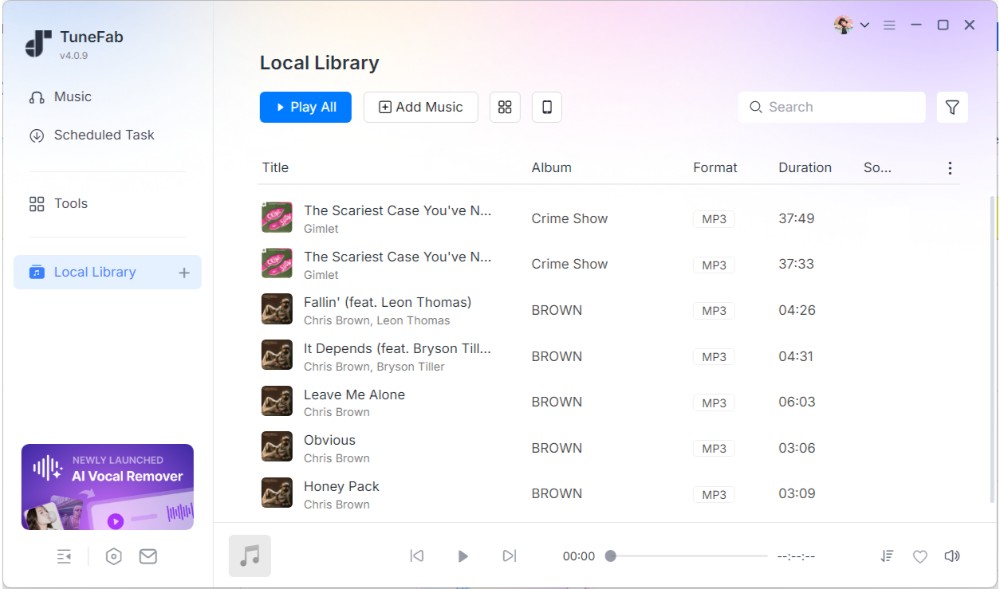
Unlike standard utilities restricted to unencrypted files, TuneFab Apple Music Converter is engineered specifically for protected AAC files, making it an effective option for converting downloaded Apple Music tracks. It addresses this encrypted streaming use case by exporting tracks directly into widely supported, DRM-free formats such as MP3, FLAC, and WAV.
Beyond handling encrypted streams, TuneFab also includes a built-in "format converter" to convert standard AAC or audio files directly to MP3 locally without having to upload anything to external cloud servers. The desktop-based environment is structured to handle large-scale audio collections efficiently, offering batch conversion capabilities, customizable output quality up to 320kbps, and automatic ID3 metadata preservation.
Additionally, TuneFab features a built-in Apple Music web player, enabling users to browse and export tracks within a single program without switching tools. While standard built-in or online tools are sufficient for occasional unencrypted files, TuneFab is tailored specifically for protected Apple Music content and heavy batch collections.
Important: TuneFab's protected-content capabilities are vendor-stated and were not independently verified in this guide. Before using any tool with protected audio, review the product documentation, applicable platform terms, and your authorization to copy or convert the content.
Pros
- Converts both DRM-protected Apple Music tracks and DRM-free AAC files
- Built-in Format Converter for local AAC to MP3 conversion
- Supports batch conversion, customizable output quality up to 320kbps, and metadata preservation
Cons
- Free trial allows 3 full song conversions
- Primarily designed for Apple Music users rather than general audio conversion
More Info:
TuneFab Apple Music Converter Review: An Honest Look at Features, Limits, and Use Cases
Final Verdict: Which AAC to MP3 Converter to Choose?
The right AAC to MP3 converter depends on the file you have and why you need to convert it. For accessible, DRM-free local audio, Apple's built-in tools or VLC may be sufficient for basic desktop conversion, while browser-based services can be convenient for smaller files when their upload and free-tier limits fit your needs. iOS users can also consider an app that supports local audio conversion, after verifying its current features and data practices.
Before converting, check whether your device already supports AAC. If the original format works for your needs, keeping the original file avoids unnecessary re-encoding. For Apple Music subscription downloads or other protected content, a specialized desktop solution, such as TuneFab Apple Music Converter, is required to handle encrypted streams and large-scale batch collections.
FAQs About AAC to MP3 Conversion
Can I Convert AAC to MP3 via VLC Player?
Yes. VLC Media Player can convert DRM-free AAC files to MP3 using its Convert/Save function. However, it does not provide a standard conversion workflow for protected Apple Music subscription downloads. Its suitability for other conversion tasks depends on the supported input format and the selected output profile.
Does converting AAC to MP3 reduce quality?
Yes. Both AAC and MP3 are lossy audio formats. Converting AAC to MP3 requires re-encoding and may introduce additional quality loss. A higher output bitrate, such as 320 kbps, cannot restore audio data already lost in the source file.
Can I convert protected Apple Music AAC to MP3?
Standard file converters generally cannot process Apple Music subscription downloads as ordinary local AAC files. These downloads have different access restrictions from DRM-free audio files, so their file extensions alone do not establish whether they can be converted. Before considering a specialized Apple Music converter, check the current product info, applicable platform terms, and your authorization to copy or convert the content.